Table of Contents
Installation
1 WordPress Admin Upload (Recommended)
- Download the SiteLock plugin zip file from your purchase confirmation email
- Log in to your WordPress admin dashboard
- Navigate to
Plugins → Add New - Click "Upload Plugin" button
- Choose the downloaded zip file and click "Install Now"
- After installation, click "Activate Plugin"
Tip: Make sure the SiteLock plugin zip file is named sitelock.zip before uploading.
2 Manual FTP Installation
- Extract the SitLock plugin zip file on your computer
- Use FTP/SFTP to connect to your WordPress site
- Upload the extracted
sitelockfolder to/wp-content/plugins/ - Log in to your WordPress admin dashboard
- Go to
Plugins → Installed Plugins - Find "SiteLock" in the list and click Activate
3 Requirements
- WordPress version 5.6 or higher
- PHP version 7.4 or higher
- MySQL version 5.7 or higher
- Administrator access to install and activate plugins
Dashboard Overview
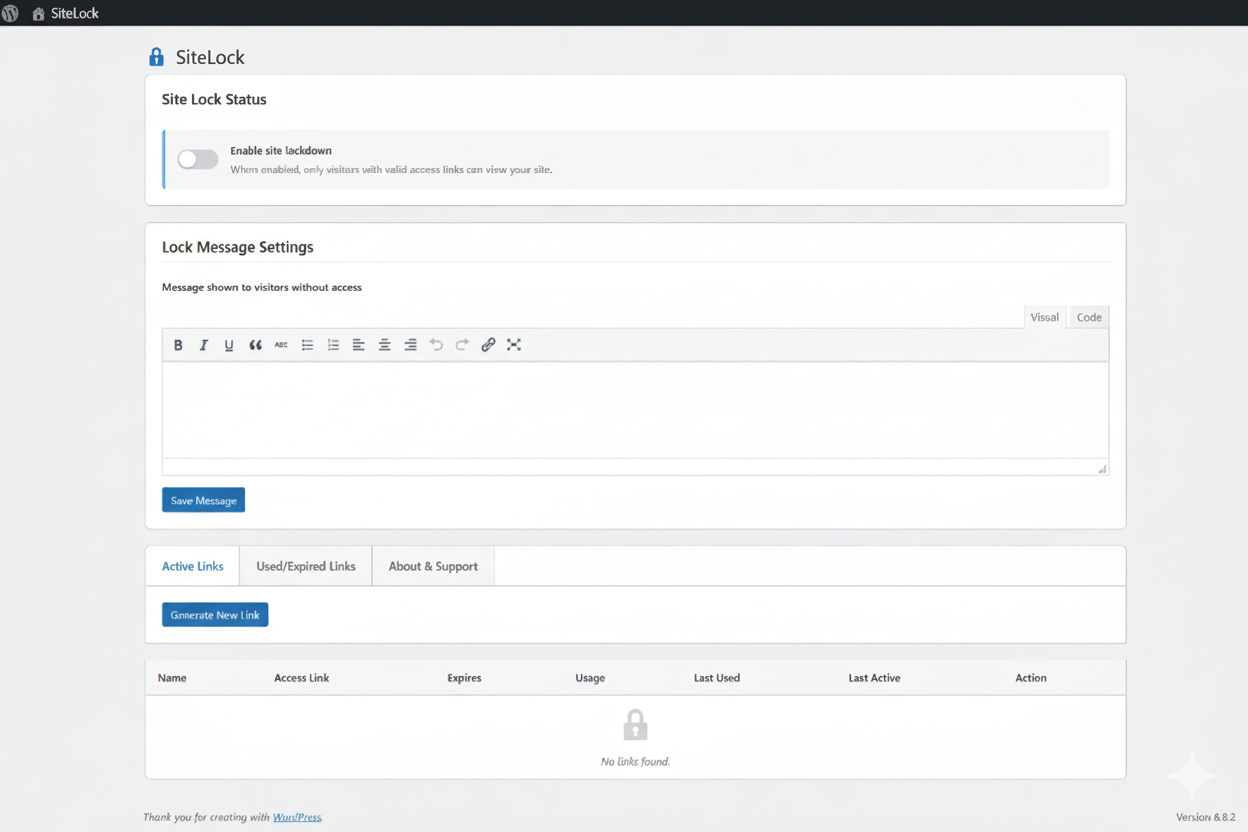
📊 Dashboard Features
- • Site lock toggle switch
- • Custom lock message editor
- • Active links overview
- • Usage tracking display
🔧 Available Actions
- • Generate new access link
- • Enable/Disable site lock
- • Copy links to clipboard
- • Expire active links manually
Link Generation
Creating a Secure Access Link
- Go to the SiteLock dashboard
- Click "Generate New Link"
- Select access duration (15 minutes to 24 hours)
- Choose allowed actions (login, plugins, themes, settings)
- Click Generate and copy the secure link
Link Options
- Expiration: Automatically invalidates after the selected time period.
- Usage Limit: Optional one-time access for heightened security.
- IP Restriction: Limit access to specific IP addresses if needed.
Managing Active Links
All active links are listed with their expiration status, usage count, and allowed actions. You can revoke access instantly or extend the duration of any link.
- Click Revoke to immediately deactivate a link
- Use Extend to add more time to an existing link
- View Activity Logs to monitor access attempts and usage
Lock Screen
The lock screen protects your site by requiring a secure access link for entry. Unauthorized visitors will see a customizable lock message with options to request access.
Customization Options
- Custom headline, message, and branding
- Upload your logo for branding consistency
- Set support contact email or phone number
Visitor Experience
- Visitors can request access directly from the lock screen
- Optional countdown timer showing link expiration
- Automatic redirect after successful authentication
Advanced Features
- API Access: Generate and manage secure links programmatically.
- Audit Logs: Comprehensive logging of link creation and usage events.
- Multi-Site Support: Manage secure access across WordPress multisite installations.
- Emergency Lockdown: Instantly lock down the entire site with a single click.
Troubleshooting Common Issues
🚫 Access Link Not Working
Possible Causes:
- Link has expired
- Link was manually revoked
- Caching issues preventing updates
- Browser cookie/session conflicts
Solutions:
- Check link status in SiteLock dashboard
- Clear browser cache and cookies
- Try accessing from incognito/private mode
- Purge caching plugin cache if applicable
- Generate a new access link if needed
⏰ Link Expired But Still Being Used
What This Means:
Someone is attempting to use an access link that has passed its expiration date.
Actions to Take:
- Check who has the expired link and inform them
- Generate a new access link if they still need access
- Review your link expiration policies
- Consider setting up email notifications for expired links
💬 Saved Message Not Showing
Common Causes:
- Theme compatibility issues
- JavaScript conflicts
- Message not properly saved in settings
- Cache preventing message updates
Troubleshooting Steps:
- Verify message is saved in SiteLock settings
- Test with default WordPress theme temporarily
- Disable other plugins to check for conflicts
- Clear all caches and check browser console for errors
🔒 Admin Locked Out
Emergency Access Methods:
- Use existing valid access link if available
- Access via direct wp-admin URL (if enabled in settings)
- FTP access to temporarily disable plugin
Prevention Tips:
- Always keep one long-duration admin access link
- Enable admin bypass option in plugin settings
- Test lock functionality on staging site first
- Document emergency access procedures
📧 Still Need Help?
If you're experiencing issues not covered here, please contact our support team at [email protected] with the following information:
- WordPress version and active theme
- SiteLock plugin version
- List of active plugins
- Detailed description of the issue
- Steps you've already tried
- Browser console errors (if any)
Support & Requests
Need help? We're here for you:
- Email: [email protected]
- Response Time: Within 24 hours on business days
- Support Hours: Monday - Friday, 9 AM - 6 PM PKT